Go to Posts -> Edit in the WordPress Admin area and you’ll see a list of all the posts you have. There is a dropdown list called View all categories, which allows you to select a single category to view posts from. But…
What if you want to view posts from more than one category, or better yet, want to exclude posts from certain categories? Can’t do it right? Well not through the WordPress interface, but you can do it through URL parameters.
Finding Out Your Category Numbers
To make this work, you’ll need to know the category numbers for your categories. You can find these through either of the following two methods:
- Go to Posts -> Category screen and hold your mouse over the category in question. In your browser’s status bar you will see a URL which ends in ID=xx (xx is the number of the category).
OR
- While still in Posts -> Edit, select the category you want in the dropdown list and click Filter. You’ll be taken to a page showing only posts from that category. In the browser’s address bar you’ll see that the URL contains cat=xx (xx is the number of the category).
The first method is quicker if you want to look up multiple category numbers (you may want to write them down). The second method is better if you’re just after one or two category numbers – you’ll need to do this step anyway.
First Step
By default, the Posts -> Edit screen has a URL that ends in wp-admin/edit.php with no parameters, eg:
http://www.scratch99.com/wp-admin/edit.php
Rather than typing all the parameters, it makes sense to start with a URL that includes them.
If you haven’t already, select one of the categories you want to include / exclude in the dropdown list and click Filter. You’ll be taken to a page showing only posts from that category, but you will now have a URL that looks like this:
http://www.scratch99.com/wp-admin/edit.php?s&mode=list&action=-1&m=0&cat=92&action2=-1
We’re going to be changing the cat=xx part of the URL.
Note: Don’t bother trying to use the URLs in this post. My wp-admin section is password protected, so all you’ll get is the password prompt.
Displaying Posts From More Than One Category
Perhaps I want to display posts from more than one category – in my case, I may want to see all the posts from my WordPress and Web Development categories, but not from the rest of my categories (too much noise).
Easy. Simply edit the URL and change the cat=xx to cat=xx,xx (where xx is the category numbers that you want). In my case, I change the URL to the following (note the cat=4,65):
http://www.scratch99.com/wp-admin/edit.php?s&mode=list&action=-1&m=0&cat=4,65&action2=-1
Want posts from three categories? That’s right:
cat=xx,xx,xx
You’ve got it now!
Excluding Posts From Certain Categories
It’s also possible to exclude posts from certain categories from appearing in the Posts -> Edit screen.
Why would I want to exclude posts from certain categories? Actually, that’s how I started looking into this issue. I haven’t been posting much recently and, as a result, my weekly automatic lifestream digest posts pretty much filled up the screen:
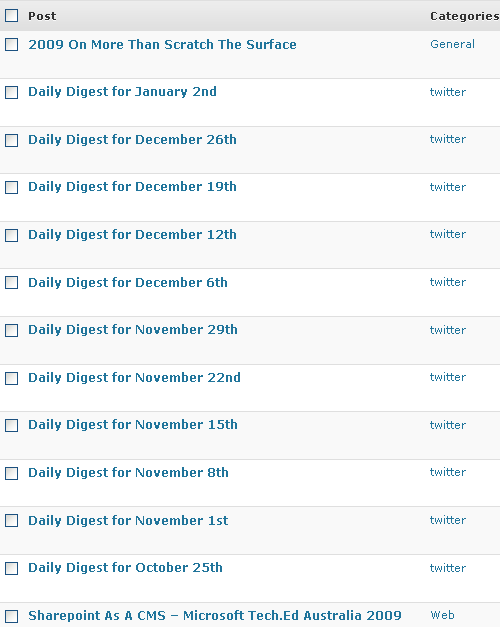
I was having trouble seeing my real posts!
Thankfully it’s easy to exclude the category that these posts are in. Simply edit the URL and change the cat=xx to cat=-xx (where xx is the category number you want). In my case, I change the URL to the following (note the minus sign, eg: cat=-92):
http://www.scratch99.com/wp-admin/edit.php?s&mode=list&action=-1&m=0&cat=-92&action2=-1
The result:
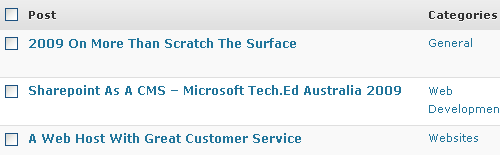
Want to exclude posts from more than one category? That’s right:
cat=-xx,-xx,-xx
Note: I follow the rule of having one category per post. I’m not quite sure what will happen if your posts have more than one category. Will they show up if you exclude one of the categories that they’re in? Probably, because they are also in a category you are including, but I don’t know for sure.
Final Thoughts
That’s all – it’s a fairly long post for a fairly simple tip. It’s probably not something that will be needed often, but in some circumstances it’s very useful to have greater control over which posts appear on the Edit Posts screen.
Hey, that is terrific insight. Makes sense now that you’ve pointed out the simple syntax.
Could you take the next step and see what happens when a post is assigned to multiple categories?
Then update this article and reply with a comment. Then I’ll know to come back and re-visit.
Thanks again! 🙂
Seem easy to use, but i prefer to make use of the search button to list related post as i might not remember which categories I put them.
Ah, i have been wanting to do that for some time, and your solution seems quite easy to use.
This is very useful if you’re working with a team of people that publish regularly, or even for a single publisher if there’s a lot of content. I use this method regularly, and the way to make it very useful for me is to find the URL I want, changing the parameters and queries as I need them, but then I drag the URL to my Firefox bookmark toolbar, or in some cases I delicious the url so its always handy. It makes publishing and editing batch of similar yet unique posts, very easy and efficient.
Not many admins will need this, I think this tip is great but only in special needs like you said you needed to find out your real posts. Thanks, I didn’t know we can select cats separated with commas. Great tip, let me see when I need to implement this tip.
Yeah,
that’s handy, especially when using wordpress as a CMS and if you want to have the opportunaty to control the display of posts for making things easier for the CMS users. I am using categories for different types of content within the websites of some clients.
I am working on a dashboard widget that comes out of the functions.php and now I know how to place links in it which point on post listings in certain categories. That is usefull!
I am wondering if it is possible to create a link that opens the edit screen for a new post in a certain category. I would like to differ for example between a link to create a new post for ‘News’ and an ‘Event’ or a ‘Testimonial’.
This is great, and very nearly what I’m looking for. I’m wondering, though — for users for whom local browser bookmarks isn’t an option — is it possible to kick these restrictive filters/parameters in *by default*?
In other words, as soon as the user clicks on “Edit Posts,” could a function/plugin somehow interrupt that with a URL string that automatically weeds out my special (Flutter) categories? (It’s 90% a “pure” blog, but 10% custom posts…events, resources, etc.) Essentially, I’d love for “Edit Posts” to always (appear to) be a repository of just one category.
Hi Jon,
I think it could be done in a plugin (or even a Greasemonkey script) – but right now I don’t have time to look into exactly how to do it. So in theory it could be done, but that probably doesn’t help you much!
I need callepsing category for the Admin panel in “Add New Post”.
I want my word-press post be in specific category like Country – State – City. But my list is toooooo big so it causes the loading time so higher.
I want to modify this category section like.
On the new post it only shows the country list when I click on the country then it loads the states for that parent country. And when I clicked on the state then it loads the city list.
I search for the plugin which suits my requirement but I fail If you know any plugin which help me then please recommend me.
Or give me some suggestion how I make this king of plugin from start.
Cheers!!!
Here I am, years later, to tell you that I found this post and it solved a problem for me, very similar to your example of excluding a category. Thanks for posting this, and thanks for leaving it up! Viva the Long Tail! 🙂